Chat is how you interact with Brightwave. Ask questions about your documents, request analysis, and generate structured outputs through a natural chat interface.
Starting a chat
Open the chat panel within a project and type your question or request in the composer.
Chat modes
Brightwave offers three chat modes that control how your request is handled:
- Quick mode — fast answers with no agent. Best for simple lookups and factual questions.
- Research mode (default) — full analysis with agent support. Use this when you need reports, tables, charts, or other structured outputs. The agent may ask clarifying questions before starting work to make sure it understands your request.
- Plan mode — the AI proposes a plan before executing. Recommended for complex, multi-step tasks where you want to review the approach first. You can add comments and additional context to the proposed plan before approving it.
The composer toolbar
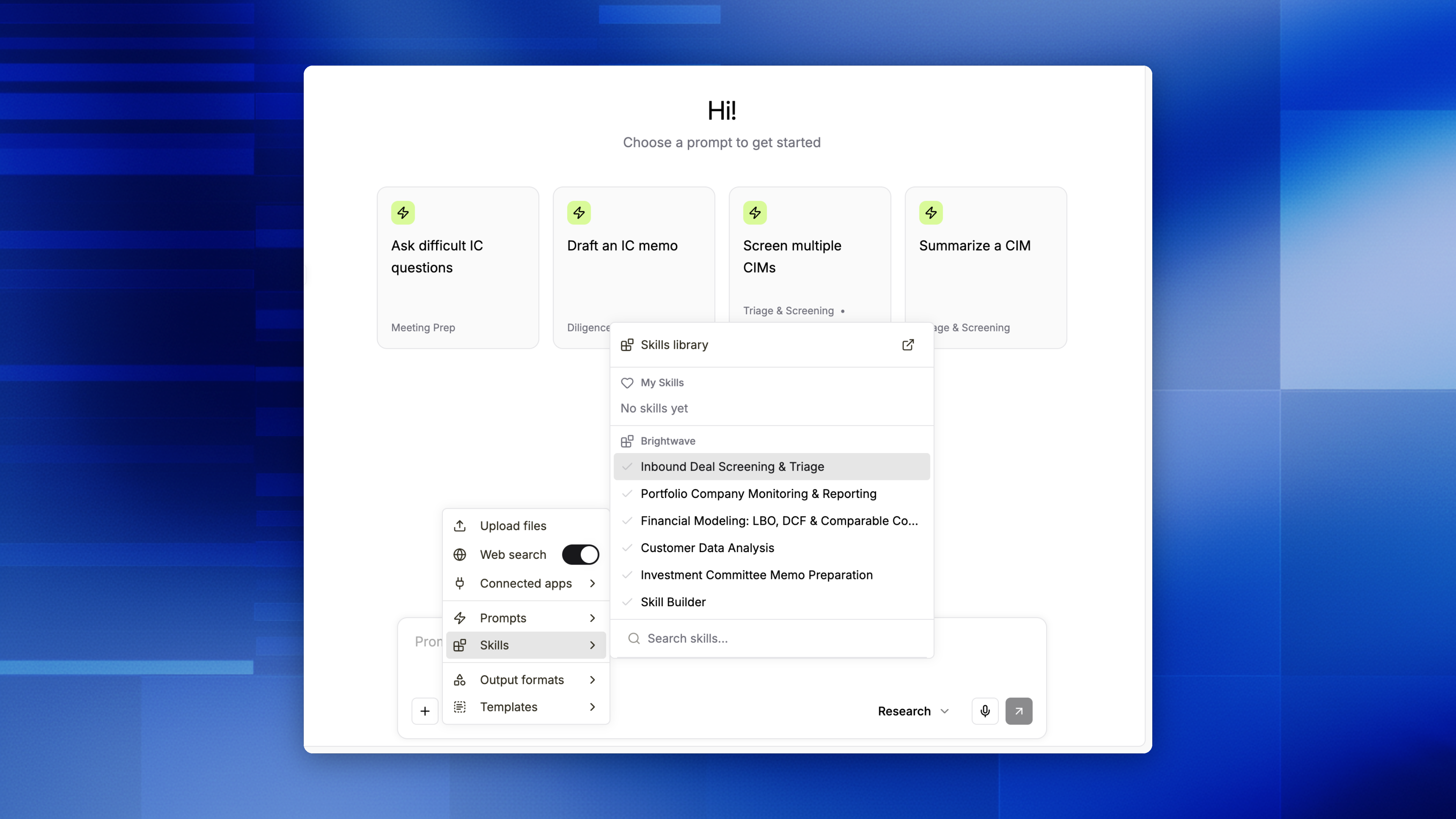
The composer toolbar gives you quick access to:
- File upload — attach additional documents directly in the chat.
- Connectors — pull in data from connected cloud drives.
- Quick prompts — insert a saved prompt.
- Templates — apply a file template to guide agent output.
- Model — override the AI model for this conversation. By default, Brightwave automatically selects the best model for each task. Toggle Auto off to pick a specific model (e.g., Claude Opus, GPT-5.5, Gemini 3.5 Flash, MiniMax M3, Kimi K2.7 Code). Your choice applies to all agents in the conversation and persists until you switch back to Auto.
- Reasoning — control how much the AI reasons before responding. Options range from Minimal to X-high, or leave it on Auto to let Brightwave choose the right level for each task. Higher reasoning effort can improve accuracy on complex analysis but takes longer. Your choice applies to all agents in the conversation.
- Voice input — click the mic button to dictate your message. Click it again to stop recording and transcribe your speech into the composer.
- Output type selector — choose the output format: report, presentation, chart, table, or Excel.
Steering a running agent
You don't have to wait for an agent to finish before adding to it. Send a message while an agent is working — even while it's paused waiting on other tasks — and it reads your new message right away, folding it into the work in progress without discarding what it's already done.
Navigating long conversations
For long research chats, use the table of contents to jump between your messages and key agent actions. Click the nav button in the agent accordion header to open it. Rail indicators along the right edge of the conversation mark your messages and major agent events — click any indicator to scroll directly to that point.
Writing effective prompts
Be specific about the analysis, documents, and format you need:
"Compare the revenue growth and margin trends across the last four 10-K filings and present the results in a table."
"Generate a report summarizing the key risk factors from the CIM, with a chart showing historical EBITDA."
"Extract the top 10 customers and their revenue contribution from each portfolio company's financial statements into a grid."
Quick prompts
Quick prompts are saved instructions you can reuse across chats. Click the Quick prompts button in the composer to browse prompts from three sources:
- Your prompts — prompts you've created for personal use.
- Team prompts — prompts shared across your organization.
- Brightwave prompts — pre-built prompts provided by Brightwave.
Prompts support bracket placeholders like [[company name]] or [[ticker]]. When you insert a prompt with placeholders, you'll be asked to fill in the values. Create and share your own prompts from the quick prompts menu.
Templates
Apply a file template from the composer toolbar to guide agent output structure and formatting. You can also ask the agent to save a document or report as a reusable template directly in chat — no need to leave the conversation. See Templates for details.
Keyboard shortcuts
Press ⌘/ (Mac) or Ctrl+/ (Windows/Linux) to open the keyboard shortcuts dialog. Shortcuts are scoped to your current context — for example, ⌘N creates a new project from the home page but a new chat inside a project. Other key shortcuts:
- ⌘B — toggle the sidebar
- ⌘K — focus the composer or open search
The dialog also includes spreadsheet-specific shortcuts when editing a spreadsheet output.
Web search
Toggle web search to supplement your document analysis with real-time information from the web.